
How to See Comments on X (Twitter), Including Hidden Replies
How to see comments on X (Twitter): open the post, sort the replies, find hidden replies and quote posts, and read comments without an account. Checked on X.

To see comments on X, open the post itself by tapping its text or timestamp, not the speech bubble, and the replies appear underneath. This guide covers sorting them, hidden replies, quote posts, why comments go missing, and how to read them without an account.
Last updated October 15, 2026. Every step re-verified against X's help centre and the live X interface on that date.
How do you see comments on X?
Open the post, then scroll down. On X, comments are called replies, and they appear on the post's own page. Tap or click the post's text or its timestamp; the speech bubble icon only opens a box to write your own reply. Above the first reply, a sort control switches between Relevant, Recent and Likes. Some comments sit one step further away: hidden replies behind an icon on the post, replies X marks as probable spam behind a button, and quote posts behind View quotes.
Can I see comments without an X account?
Yes, for public posts. Search conversation_id: plus the post's ID in a free viewer that does not ask you to log in. It lists the public replies. The steps are below.
Are hidden replies gone for good?
No. Hidden replies are moved, not deleted. X says everyone can still open them through the hidden reply icon on the original post, and the person who wrote the reply is not told it was hidden.
Why are some comments missing?
Ranking, spam filtering and privacy. X orders replies by relevance, holds some back as probable spam, and shows protected accounts' replies only to their followers. Each cause and its fix is listed below.
How to see comments on X (Twitter), step by step
The comments under a post live on that post's detail page, so the only step most people miss is opening it. How to view comments on X is the same in the X app for iPhone and Android and on x.com in a browser.
- Open the post, not the reply box. Tap or click the text of the post, or the timestamp under it (for example, "Oct 9, 2026"). Avoid the speech bubble icon: on X it opens a box to write your own reply.
- Scroll down. The replies are listed under the post, below the counts for replies, reposts, likes and bookmarks.
- Change the order if you need to. Above the first reply there is a sort control, set to Relevant by default. Select it to switch to Recent (newest first) or Likes (most liked first).
- Open a single reply to see its own replies. Tap any reply and it opens as a post of its own, with the replies written to it listed underneath.
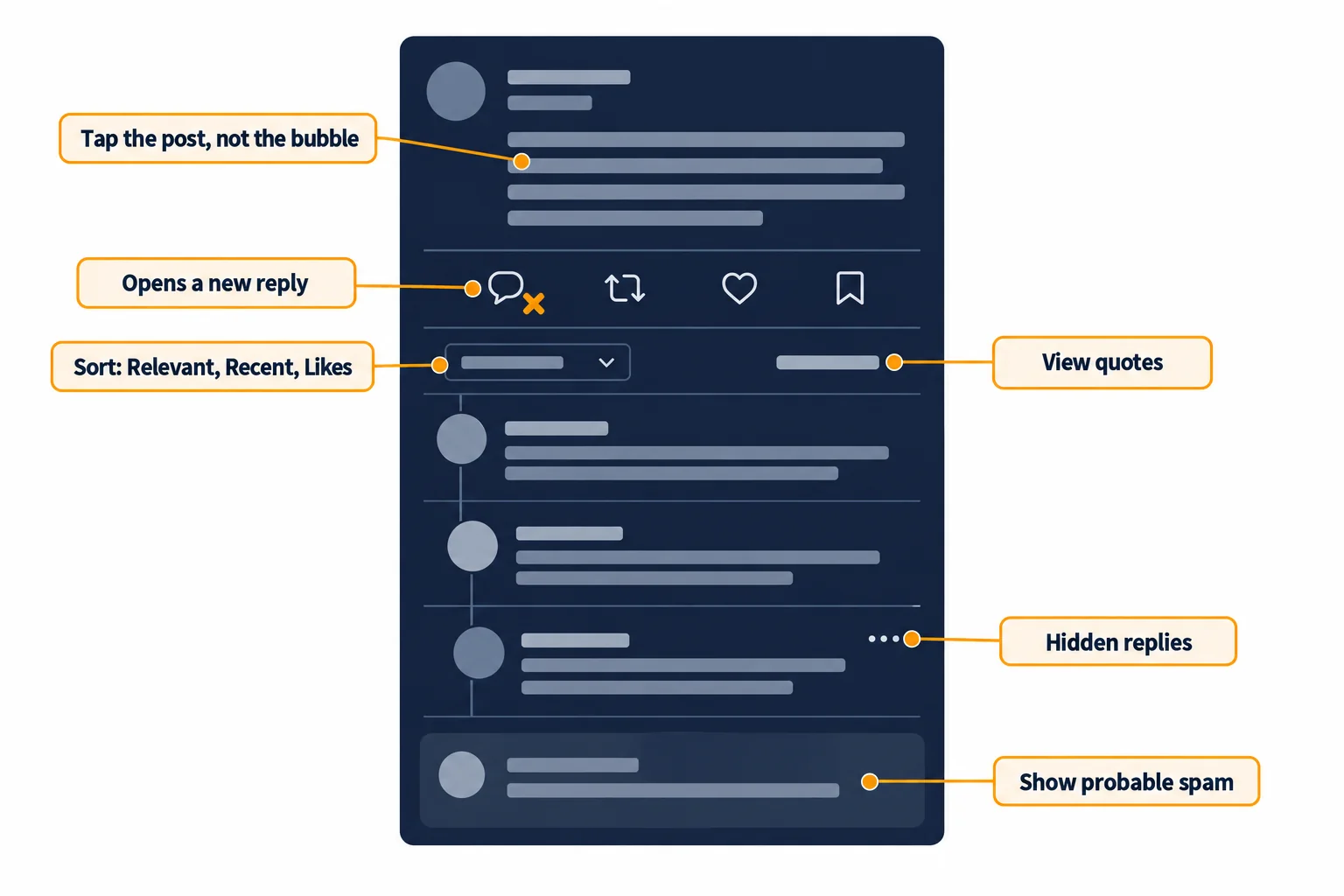
Where the comments on an X (Twitter) post live: open the post itself, then use the sort control, the hidden reply icon, View quotes and Show probable spam to reach the rest.
What are comments on X?
A comment on X is a reply: a post written in response to another post. X never uses the word, and how to see comments on Twitter, or how to see replies on Twitter, has the same answer. Replies show up in three places, according to X's help page on the different types of posts:
| Where | What you see there |
|---|---|
| Under the original post | Every public reply, on the post detail page |
| The replier's profile, Replies tab | Every reply that person has sent |
| The original author's Notifications tab | Replies to their posts, for the author only |
The second row answers a common question: to see what someone has commented across X, open their profile and select Replies. The same tab on your own profile is your comment history.
Start building with GetXAPI
$0.05 per 1,000 tweets. $0.10 free credits. No credit card required.
Why can't I see comments on X?
Most missing comments are ranked low, filtered as spam, hidden by the author, or from a protected account; a few are never loaded at all. If comments are not loading, or the replies you expect are not there, work through these causes in order. Each comes from X's own documentation or from how the post page works.
You opened the reply box instead of the post
Tapping the speech bubble starts a new reply; it does not show the existing ones. Tap the post text or timestamp instead, as in the steps above.
You are not signed in
X shows many visitors who are not signed in a login prompt instead of the full conversation. The replies are still public, and the section on reading comments without an account shows a way around it.
The replies are ranked, not listed in time order
X says on its replies and mentions help page that replies are "not shown in chronological order". It ranks a reply higher when, among other factors, the original author replied to it, it comes from someone you follow, or it comes from an X Premium subscriber. Switch the sort to Recent to see the newest replies first.
The reply is behind "Show probable spam"
Further down a long conversation you may see a Show probable spam button. X uses it for replies it identifies as potentially lower quality, based on the author's previous behavior and the reply's content. Select it to load them.
The author hid the reply
A post's author can hide replies to their post. Hidden replies leave the main conversation but stay viewable, as the next section shows.
The account that replied is protected
X states that replies from people with protected posts "will only be visible to their followers". If you do not follow that account, you will not see its replies anywhere.
The author limited who can reply
Authors can restrict replies to accounts they follow, accounts they mention, or verified accounts, and can change that setting midway through a conversation, according to X's page on conversations. A post with few or no comments may simply be one most people could not reply to.
The post has more replies than X can display
X's help page on replies explains that when a post receives an overwhelming volume of replies, the platform is unable to show all of them. Very viral posts can have replies you will not find on the post page, even though they exist on the replier's profile.
How to see hidden replies on X
Open the post and select the hidden reply icon; it only appears when the author has hidden at least one reply. Hidden replies are replies the author moved out of the conversation. They are not deleted, and anyone can open them. From X's help centre:
- Open the post, as in the steps above.
- Look for the hidden reply icon on the original post.
- Select it to open the hidden replies page, which lists every reply the author hid.
Details from the same page:
- The person whose reply was hidden is not notified.
- The author can unhide a reply at any time from the hidden replies page.
- Hidden replies from protected accounts do not appear on that page, and neither do hidden replies the replier later deleted.
- The feature works in the X app for iPhone and Android and on x.com, but not in X Pro.
How to see quote tweets on X
Open the post and select View quotes. A quote post, still widely called a quote tweet, is a repost with added comment, and it never appears among the replies. X's Repost FAQs describe the same page: the post shows its quote count, and the Quote posts tab lists who quoted it.
You can also search for them. Type quoted_tweet_id: followed by the post's ID into X search to list the quote posts of that one post. The ID is the long number at the end of the post's link, after /status/.
The cheapest Twitter API. Try it free.
$0.05 per 1,000 tweets. $0.10 free credits. No credit card required.
How to read comments on X without an account
Search the post's conversation in a viewer that does not need a login. You need two things: the post's ID, which is the number at the end of its link, and a search box that accepts X's search operators. The replies stay public even when X's own app asks you to sign in.
- Copy the post's link. For example,
https://x.com/claudeai/status/2108271552991252810. - Take the number at the end. Here,
2108271552991252810. - Search for the conversation. In the Search tab of the free Twitter viewer, enter
conversation_id:2108271552991252810. Choose Latest for the newest replies first or Top for the most engaged.
We tested this on October 15, 2026, on that post from @claudeai: the search returned its public replies 20 at a time, with a Load more button for the rest. Swap in quoted_tweet_id: with the same number to read the quote posts instead.
If you only want the author's own follow-up posts, not everyone's comments, the free thread reader unrolls the author's thread from one link and leaves other people's replies out. No method can show replies from protected accounts, replies that were deleted, or posts from suspended accounts.
Ways to see comments on X, compared
Use the X app for everyday reading, a profile's Replies tab for one person's comments, and conversation_id: search when you need filters or have no account. The replies API is for exporting every comment as data. The table shows what each method needs and covers.
| Method | Needs an X account | Hidden replies | Quote posts | Best for |
|---|---|---|---|---|
| Open the post on X | For the full conversation, yes | On their own page, through the hidden reply icon | Through View quotes | Everyday reading |
| A profile's Replies tab | For the full list, yes | Not marked as hidden | No | One person's comments |
conversation_id: in X search |
Yes | Not marked as hidden | With quoted_tweet_id: |
Filtering replies with other operators |
conversation_id: in a free viewer |
No | Not marked as hidden | With quoted_tweet_id: |
Reading without logging in |
| The replies API | No, an API key | Not marked as hidden | With quoted_tweet_id: search |
Exporting every comment |
Search operators combine, so you can narrow a busy conversation. conversation_id:2108271552991252810 min_faves:50 keeps only replies with at least 50 likes, and from:username filter:replies lists one person's replies anywhere on X. The advanced search operators guide lists the rest.
When the X app is enough
- You are signed in and reading one post's comments.
- You want hidden replies; only X shows the hidden replies page.
- You want the replies X ranks first, or the most liked.
- You want to reply, like or repost while you read.
When you need another way
- You have no X account: use
conversation_id:in a free viewer. - You want only the author's thread: use the thread reader.
- You need every comment as data, for research or moderation: use the replies API below.
- You want replies from a protected account: no method can show them unless the account approves you.
How to export all the comments on an X post
Call a replies endpoint with the post's ID and page through the results. Reading a few hundred replies by scrolling is fine; collecting every comment on a post, for research, moderation or a giveaway, is easier with an API that returns them as data.
The GetXAPI tweet replies endpoint takes a post ID and returns its replies page by page, with a cursor for the next page. Each call costs $0.001, and there is no X developer account to apply for.
curl -H "Authorization: Bearer YOUR_GETXAPI_KEY" \
  "https://api.getxapi.com/twitter/tweet/replies?id=2108271552991252810"
Each reply comes back with its text, author, timestamp, like, reply and view counts, and the ID of the post it answers, so you can rebuild nested conversations. The same conversation_id: and quoted_tweet_id: queries from this guide also work on the Twitter search API, which is useful for filtering a conversation by likes, language or date.
Read every comment, or export them all
To see comments on X, open the post, sort the replies, check the hidden reply icon and View quotes, and remember that some replies are ranked low or held back as probable spam. Without an account, conversation_id: in a free viewer does the same job for public replies.
If you need the comments as data, create a free GetXAPI account: a key is issued at signup with free credit, and the replies endpoint is documented at docs.getxapi.com.
Sources
- X Help Center: About replies and mentions (reply ranking, Show probable spam, hidden replies, protected accounts)
- X Help Center: Help with hashtags and replies (replies not appearing)
- X Help Center: About conversations on X (who can reply settings)
- X Help Center: About different types of Posts (where replies appear)
- X Help Center: Repost FAQs (Quote posts tab)
Checked October 15, 2026.
How to see comments on X: FAQ
Yes. Every public reply to a public post appears under it: open the post by tapping its text or timestamp and scroll down. Replies from protected accounts are the exception, since X shows them only to that account's approved followers.
X ranks replies instead of listing them in time order, and it moves replies it judges to be probable spam behind a Show probable spam button. Separately, a post's author can hide individual replies. In every case the replies still exist and can be opened.
Open your profile on X and select the Replies tab. X lists replies on the profile of the person who sent them, so your own replies, and anyone else's public replies, are collected there with the newest first.
Yes. Copy the number at the end of the post's link, then search conversation_id: followed by that number in the Search tab of a free viewer that works without logging in. It lists the public replies to that post, newest or top first.
The usual causes are being signed out, tapping the reply icon instead of the post, replies ranked so the one you want sits far down, replies held behind Show probable spam, replies the author hid, or a post with more replies than X can display. Each one, with its fix, is in the section on missing comments above.
Yes. According to X's help centre, everyone can still open hidden replies through the hidden reply icon on the original post. Hiding moves a reply out of the main conversation; it does not delete it, and the person whose reply was hidden is not notified.
Only if you follow the account and it has approved you. X states that replies from people with protected posts are visible only to their followers, so no viewer, search or tool can show them to anyone else.
If the person commenting has a protected account, only their approved followers can see the reply. If the post's author hid the reply, open the hidden reply icon on the post. If X marked it as probable spam, select Show probable spam near the end of the replies.
Check out similar blogs
More guides on the Twitter/X API, scraping, and pricing.

How Many People Use X (Twitter)? User Statistics
How many people use X: about 550 million monthly users across X and Grok, 64.7 million in the EU, 21% of US adults. Every figure sourced, plus our own sample.

Classify 10,000 Tweets with Jev and the X API: Real Costs
We pulled 10,000 live tweets and classified every one with Jev, TypeSafe's new decision model. Real cost, latency, agreement rates, failure cases and the full script.

How to Search Tweets by Hashtag with the X API
Tested X API hashtag queries: how the # operator differs from a plain keyword, combining hashtags, Top versus Latest, filters that work, and cursor pagination.

X (Twitter) API Object Reference: Tweet and User Fields
Every field on the X API v2 Post and User objects, plus Media, Poll and Place: type, what it holds, the auth it needs, nested keys and enum values.

X (Twitter) Webhooks: Setup, the CRC Check and Limits
How X delivers real-time events over webhooks, what the Challenge-Response Check actually asks for, the requirements that silently reject a URL, and the per-tier limits.

X (Twitter) API Error Codes: Reference and Retry Rules
X API status codes, error type URIs and the numeric codes behind them, with the cause and the fix for each, plus the partial-error case that returns HTTP 200.

Twitter API 403 Forbidden and 401 Unauthorized: Every Cause and Fix
Why the X API returns 403 Forbidden or 401 Unauthorized, how to tell the two apart, and a fix for each cause. Covers tier gating, app permissions, OAuth, and X error codes.

The Best Twitter (X) API Alternatives in 2026, Compared
The best Twitter / X API alternatives in 2026, ranked and compared: managed pay-per-call APIs, web-data marketplaces, and open-source libraries, with real per-1,000-tweet costs.
Featured in
Where GetXAPI's data and pricing get cited.

The hidden line item in your AI side project: X data
Indie Hackers post on the often-overlooked cost of X data for AI side projects, citing GetXAPI as the usage-based way to pull live Twitter data without a five-figure X developer contract.

How Companies Are Learning to Read Market Mood in Real Time
Editorial feature on Big News Network examining how companies read market mood from X in real time, citing GetXAPI as the usage-based Twitter API that prices live social listening by the call instead of a five-figure annual contract.

How Companies Are Learning to Read Market Mood in Real Time
Syndicated feature on Business Newswire on how companies read market mood from X in real time, citing GetXAPI as the usage-based Twitter API that prices live social listening by the call.

Working with Twitter/X Data: A Practical Skill for IT Students and Professionals in 2026
Guide on SIIT (Scholars International Institute of Technology) on collecting live Twitter/X data as a practical developer skill, citing GetXAPI as the per-call Twitter data API that makes it affordable without an X developer account.

Adding Twitter/X Data to Your App in 2026: A Developer's Integration Guide
Developer integration guide on Programming Insider covering how to add live Twitter/X data to an app in 2026, comparing the official X API v2 with a key-based REST approach and citing GetXAPI as the low-cost per-call option with no developer-account approval.

6 Twitter/X Scraping Solutions for Every Budget
Roundup on TechBullion of the leading Twitter/X scraping solutions, ranking GetXAPI first as the cheapest option at $0.001 per call (about $0.05 per 1,000 tweets) with clean JSON output and no monthly minimum.

The Data Bill Behind Every Social Analytics Tool
Editorial piece on SpeakRJ examining the underlying data costs behind social analytics tools, citing GetXAPI as the usage-based way to source live X data by the call.

What Is AI Sentiment Analysis, and What Does Each Layer Cost?
Explainer in AI Journal breaking sentiment analysis into its data, model and reporting layers and what each costs to run, citing GetXAPI for pulling public X posts on pay-per-call pricing.

Why Enterprise AI Agents Still Cannot Read Social Data
Analysis piece in The Silicon Review on why enterprise agents reach internal systems easily but struggle with public social data, citing GetXAPI's MCP server and data-as-a-service model as one route to close the gap.